Resize Rows and Columns in Excel
One of the fastest ways to improve a spreadsheet is to size the rows and columns so the information fits clearly. A well-sized sheet is easier to read, easier to check, and easier to share with students, teachers, or family members.
Why size matters
If a column is too narrow, names, titles, or dates may be cut off. If a row is too short, wrapped text can be hidden. Resizing helps your sheet look organized without changing the information inside the cells.
How to resize columns
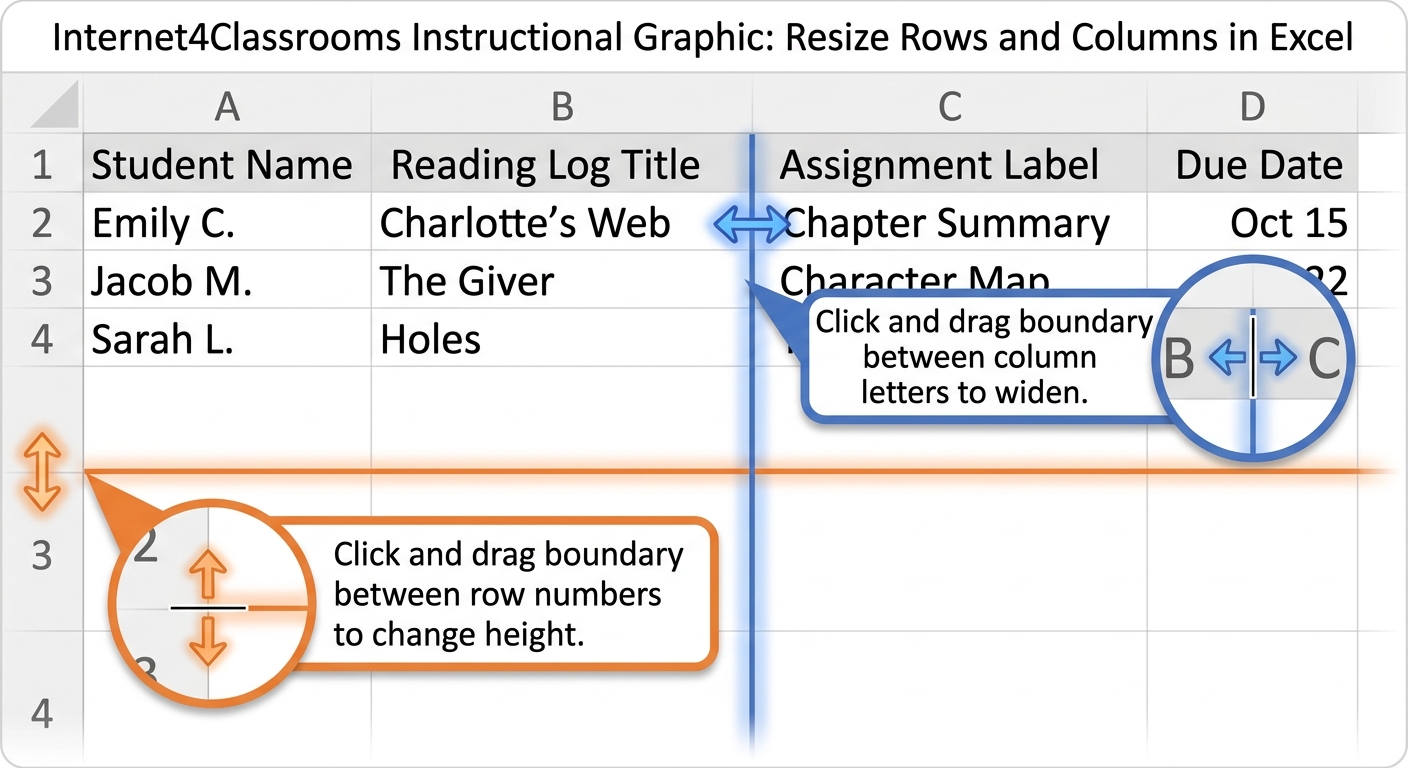
Move your pointer to the line between two column letters, then drag to make the column wider or narrower. You can also double-click that boundary to use AutoFit, which adjusts the column to match the longest visible entry.
How to resize rows
Move your pointer to the line between two row numbers, then drag to change the height. If a row contains wrapped text, making the row taller can help all of the text show clearly.
Try it
Imagine a reading log with student names, book titles, and dates. Widen the name and title columns so the text is not cut off. Then use AutoFit where possible to keep the sheet neat.
Common mistakes
- Making every column too wide, which wastes space
- Forgetting AutoFit when a quick fix would work
- Leaving narrow columns that hide important labels
Next step: Continue to Alignment and Wrap Text.
Internet4classrooms is a collaborative effort by
Susan Brooks and Bill Byles.