Alignment and Wrap Text in Excel
Good alignment helps readers understand a spreadsheet quickly. Wrap Text helps longer labels fit inside a cell without forcing the whole column to become too wide.
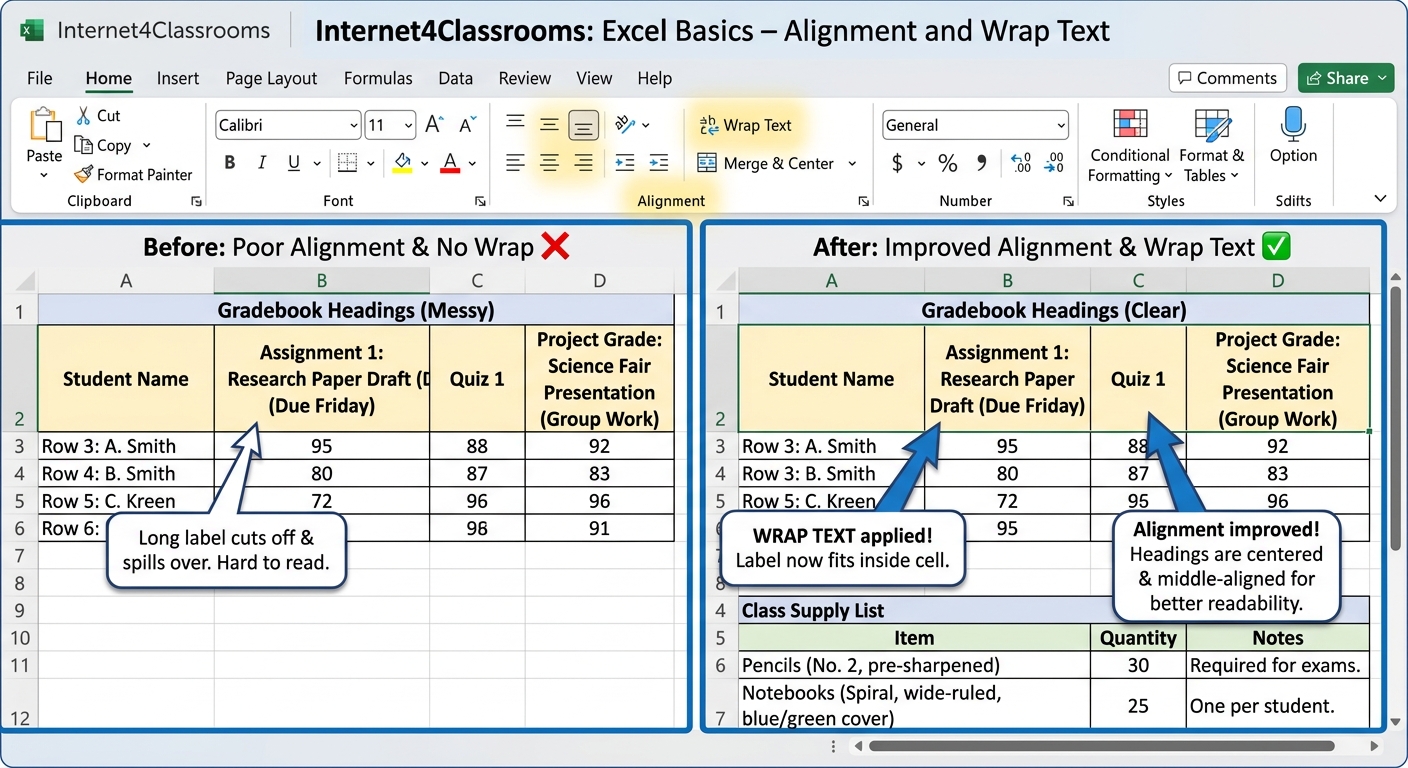
Horizontal and vertical alignment
Excel lets you align content left, center, or right. It also lets you control vertical placement within a cell. For headings, centered text may help. For lists and labels, left alignment is often easier to read.
When to use Wrap Text
Wrap Text is useful when a heading or label is longer than the available column width. Instead of widening the whole column too much, Excel can place the text on more than one line inside the same cell.
Try it
In a supply list or gradebook, try centering the heading row and wrapping longer column labels so the table stays readable without becoming too wide.
Use caution with merged cells
Merged cells can make a heading look neat, but they can also make sorting, selecting, and formatting harder later. Use them carefully, especially in sheets that will grow over time.
Common mistakes
- Centering everything, which makes data harder to scan
- Ignoring Wrap Text and letting labels get cut off
- Using merged cells where a simple centered heading would work better
Next step: Continue to Borders, Colors, and Styles.
Internet4classrooms is a collaborative effort by
Susan Brooks and Bill Byles.