| Sign Up For Our Newsletter |

| Sign Up For Our Newsletter |

Making a PowerPoint Show
Beginning with a new slideWhen you launch PowerPoint you will see the window below:
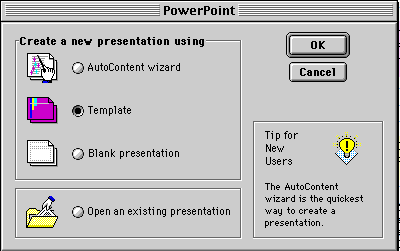
Select Template if it is not already selected. Click OK to make your choice.
This tutorial was prepared using PowerPoint in Office 98 for Macintosh.
If you are using a different version of PowerPoint you may see slightly different windows.
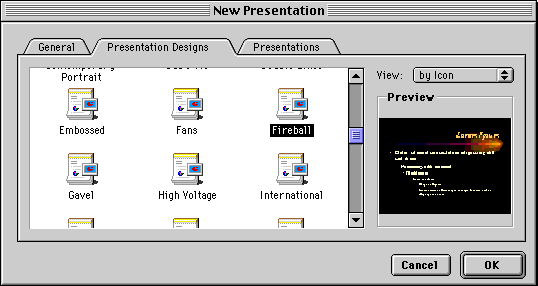
In the window above the template Fireball could be chosen by double-clicking the icon, or by clicking on the OK button. If you decide later that you wish to change the template, follow these steps
- Go to the Format menu at the top of the screen
- Choose Apply Design
- Search for where the templates are stored. The path I followed was:
- Hard Drive/Microsoft Office 98/Templates/Presentation Designs.
That will carry you back to the window you see above. This can be done at any time during the construction of your slide show. However, you may choose only one template for a presentation. Backgrounds can be varied, elements can be recolored, but more than one template can no t be used in a single presentation. [Note: PowerPoint XP and later versions allow use of different design templates on individual slides in a show.]
After choosing a template your next choice is slide layout.
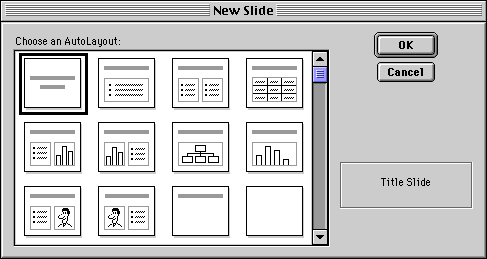
Title slide is the layout presented for your first slide. You may choose the layout by double-clicking on the layout, or by clicking on the OK button. You may select a different layout by clicking on the thumbnail image. Several types of layout are illustrated above:

Title

Organization chart

Bulleted text

Insert a Graph

Clip Art

Using a Table
After you have chosen a layout for your slide is you decide you wish to change the layout for that particular slide, follow these directions:
- Go to the Format menu at the top of the screen
- Choose Slide Layout to see the window shown above
Adding a New Slide
After you have selected the format for your first slide, you may add a second slide to your presentation by:
Go to Adding text to a slide, moving the text, and changing text style or color
- Go to the Insert menu at the top of the page and select New Slide
- Click on the New Slide button

Go Back to Using PowerPoint for presentations

Internet4classrooms is a collaborative effort by
Susan Brooks and Bill Byles.


advertisement
advertisement
Use of this Web site constitutes acceptance of our Terms of Service and Privacy Policy.