| Sign Up For Our Newsletter |

| Sign Up For Our Newsletter |

MS Word Menus
Insert, Format, and Font menu items
Windows/PC versionThe most commonly used items from the Insert and Format menus will be explained. A quiz will follow.
Insert menu
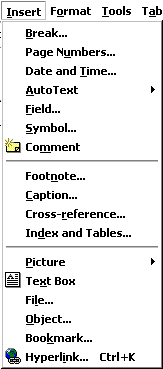
Page Break - Use this command to send your cursor to the top of the next page even though the text does not extend to the bottom of the previous page
Date and Time - Choose from seventeen formats for displaying date, time, or date and time.
Auto Text - Insert any of several pre-set text lines, or create your own.
Symbol - Insert a symbol from each of your symbol fonts, or any standard font which includes symbols. There are more than you might think!
Footnote - Place a footnote at the bottom of the page or the end of the document.
Picture - Insert pictures from clip art or a file. You can also insert auto shapes, word art, or a chart.
Text Box (Frame) - Use this to place captions near tables or drawings, or to set off text at the beginning of a page. Click and draw the box after making this selection.
File - Insert a saved document into the active document at the cursor.
Object - Insert an object such as clip art, word art, an equation or much more.
Hyperlink - An interesting use of hyperlinks is to place a link to any document stored on your computer. You can later open that document by clicking on the link. Neat?
Format menu
Font - Change font style, size, color and a large number of other features. You can also change the spacing between letters here.
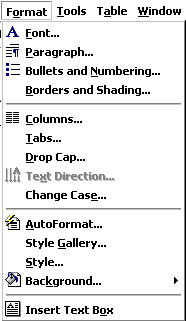
Paragraph - Indent a paragraph using either margin or place some chosen amount of space before or after the paragraph.
Bullets and Numbering - As promised in the Insert menu, if you wish to change the bullet, it can be done here. Your bullets can be literally any symbol you wish them to be
Border - Create borders around blocks of text, or around the entire document. On the Page Border tab, under the Art pull down menu you can find a huge selection of graphic borders; hearts, stars, planets and much more.
Drop Cap - Make the first letter of a paragraph or chapter large enough to span several lines.
Style - If you prefer not to use the Formatting toolbar, document style can be changed here.
Background - Another task which can be handled in the Formatting toolbar, you can choose the color to highlight selected text in your document.
Change Case - DO YOU EVER FORGET THE CAPS LOCK? If so, some to this sub-menu and change the case of the highlighted text. This is a cool feature!
Bold, Italic, Underline - Format selected text; Bold , Italic , or Underlined.
Object - Make changes to any selected object; image, word art, auto shape or any other object inserted into the document.
This quiz is available on a page without the tables above
In the Table below, select which menu you would use to perform the stated action.
2. The bullets you placed in your document are too plain, you want to change them. Which menu do you select?
* 3. For Valentine's Day you want to place a border of hearts around a page. Which menu do you select?
* 4. On a letter to parents you want to include the date and time. Which menu do you select?
* 5. You want to print a unit plan. One section covers only half of a page, but you want it on a page by itself. Which menu do you select?
* 6. A word in the title of a sign does not look right and you want to change the spacing between the letters. Which menu do you select?
* 7. You want to insert the © sign in your document. Which menu do you select?
* 8. To make a document fit on one page you need to adjust the page margins. Which menu do you select?
* 9. You want to change the font on a document to Helvetica. Which menu do you select?
* 10. YOU DID NOT NOTICE...(Oops) caps lock was on and you want to change the case of those all-caps words. Which menu do you select?
*
Go to Using Word menu items, part 3
Go back to Using Microsoft Word to Produce Classroom Documents


Internet4classrooms is a collaborative effort by
Susan Brooks and Bill Byles.


advertisement
advertisement
Use of this Web site constitutes acceptance of our Terms of Service and Privacy Policy.