| Sign Up For Our Newsletter |

| Sign Up For Our Newsletter |

Copying and pasting Clip Art images
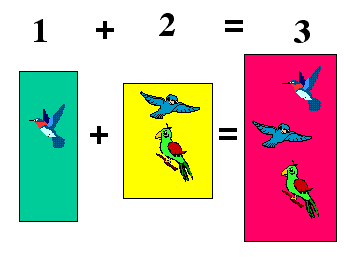
The three images have been pasted into the left and center box. There is no need to repeat the step of going to the clip art database. Copying and pasting the existing images will be faster and easier.
Step 1 - Select one of the images by clicking on it. You know the image is selected by the eight white boxes around it.
Step 2 - Copy the image
- Move your cursor to the Edit menu and select Copy
- Click on the Copy button in the Standard toolbar

- Use the keyboard combination to copy (Ctrl+C for IBM or Command+C for Macintosh)
Step 3 - Paste the image. Do not worry about trying to click where you want the image to go, it will paste near the image copied.
- Move your cursor to the Edit menu and select Paste
- Click on the Paste button in the Standard toolbar

- Use the keyboard combination to copy (Ctrl+V for IBM or Command+V for Macintosh)
Step 4 - Move your cursor onto the image, click and drag to the colored box on the right side of the slide.
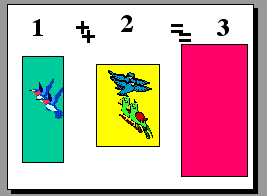
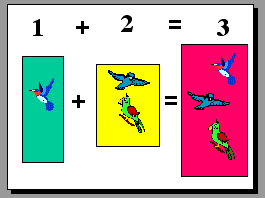
Step 5- Repeat steps 2, 3, and 4 with the other two images.
Step 6 - Copy the plus (+) and equal (=) signs and paste them between the colored blocks. When this procedure is complete you should have a slide that looks somewhat like the slide above Step 5.
Go to the next lesson - Copying and pasting slides in the Slide Sorter view

Internet4classrooms is a collaborative effort by
Susan Brooks and Bill Byles.


advertisement
advertisement
Use of this Web site constitutes acceptance of our Terms of Service and Privacy Policy.