| Sign Up For Our Newsletter |

| Sign Up For Our Newsletter |
Copying and pasting slides in the Slide Sorter view
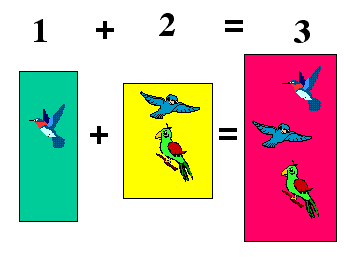
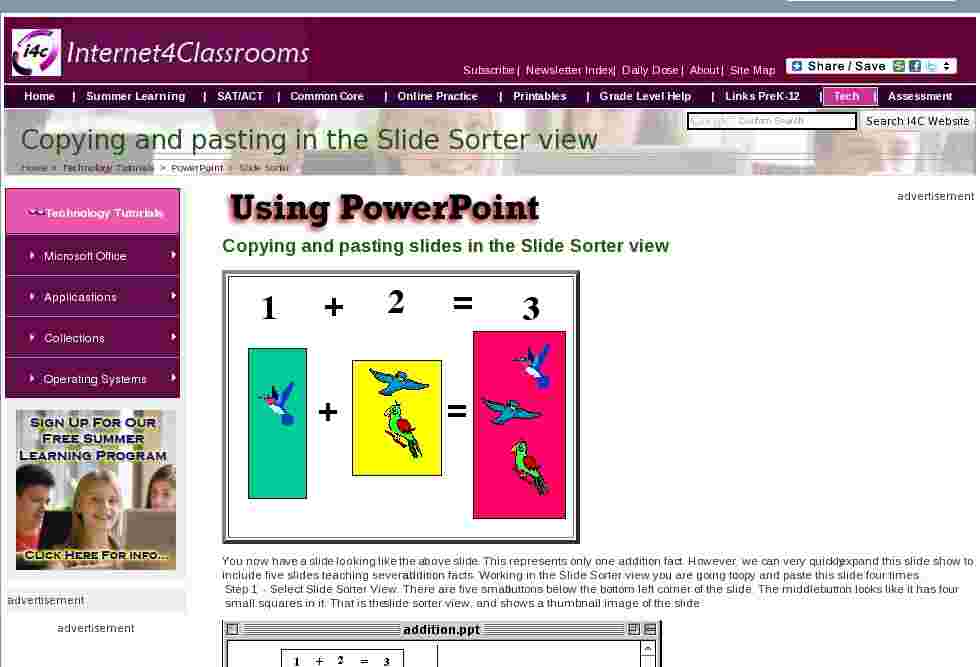
You now have a slide looking like the above slide. This represents only one addition fact. However, we can very quickly expand this slide show to include five slides teaching several addition facts. Working in the Slide Sorter view you are going to copy and paste this slide four times.
Step 1 - Select Slide Sorter View. There are five small buttons below the bottom left corner of the slide. The middle button looks like it has four small squares in it. That is the slide sorter view, and shows a thumbnail image of the slide
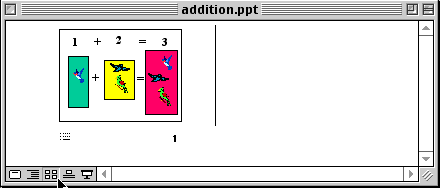
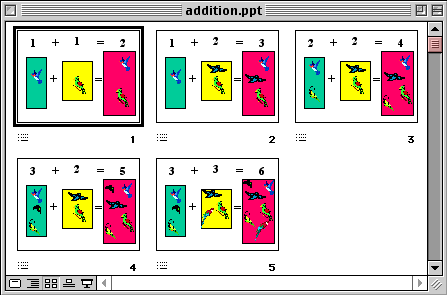
Consider for a minute what the final slide show will look like. I want to review the following addition facts
- 1 + 1 = 2
- 1 + 2 = 3
- 2 + 2 = 4
- 2 + 3 = 5
- 3 + 3 = 6
That means I need to have one slide before the current slide, and three more slides after the current slide. We are going to accomplish this by copying the slide above and pasting the exact same slide four times. Then each slide will be modified until the show includes all of the addition facts listed above.
Step 2 - Click on the slide and copy the slide
- Move your cursor to the Edit menu and select Copy
- Click on the Copy button in the Standard toolbar

- Use the keyboard combination to copy (Ctrl+C for IBM or Command+C for Macintosh)
Step 3 - Paste the slide four times.
- Move your cursor to the Edit menu and select Paste
- Click on the Paste button in the Standard toolbar

- Use the keyboard combination to copy (Ctrl+V for IBM or Command+V for Macintosh)
This step will produce the following window:
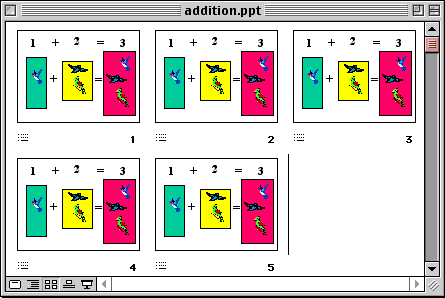
Step 4 - Double-click the slide 1 thumbnail image and make two changes. The slide should read "1 + 1 = 2", and you should remove one bird from the center and right blocks.
Step 5 - Continue this process until you have changes slides 3, 4, and 5 also. For those slides you will need to insert more images to fit the number facts listed on the slide. This will produce a slide show similar to the one below:
Go to the next lesson - Grouping screen elements

Internet4classrooms is a collaborative effort by
Susan Brooks and Bill Byles.


advertisement
advertisement
Use of this Web site constitutes acceptance of our Terms of Service and Privacy Policy.