Autofill and Copy Formulas in Excel
One of Excel's best time-saving tools is copying a formula down a column or across a row. Autofill can repeat the pattern for you, but you still need to check that the references changed the right way.
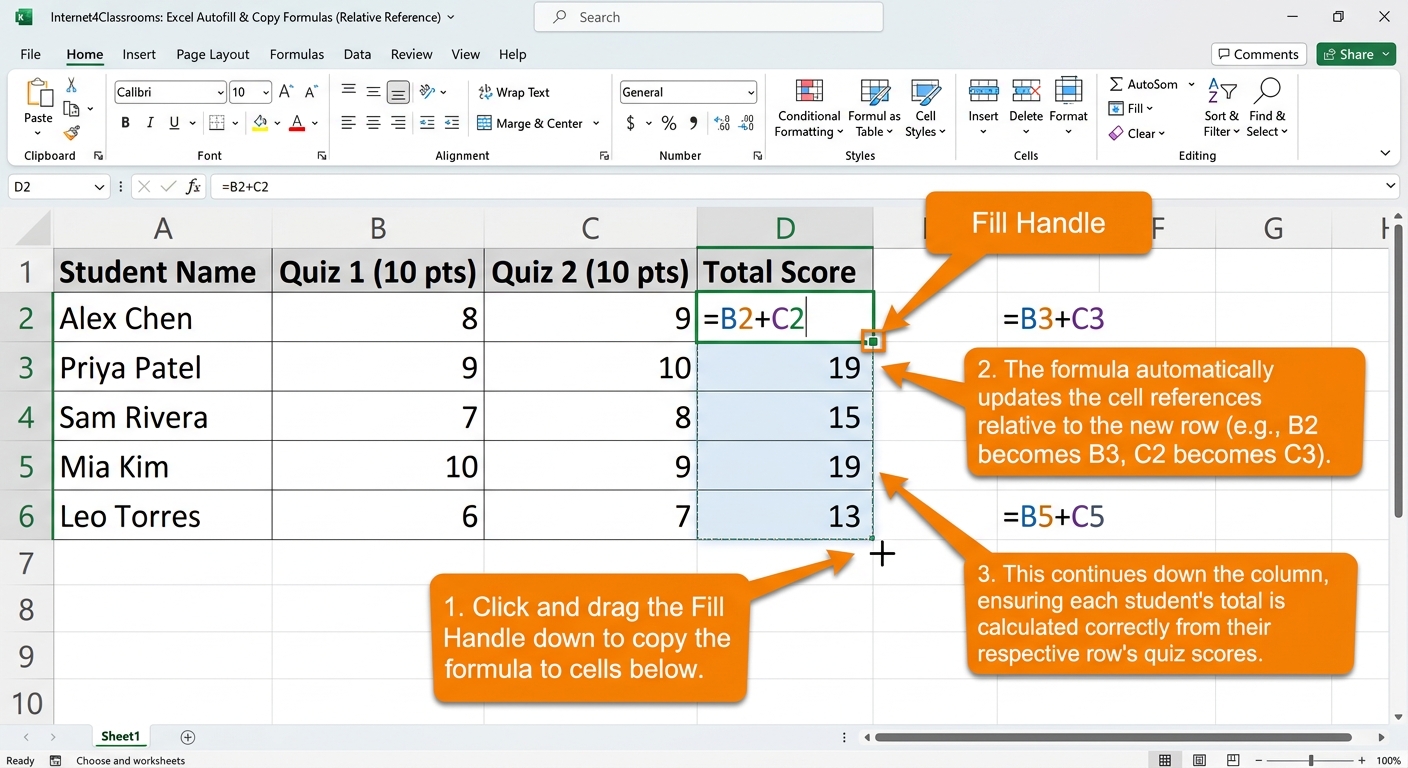
How Autofill helps
After you build one correct formula, you can drag the fill handle to copy it into nearby cells. Excel updates the relative references based on each row or column.
What to check
After using Autofill, click a few of the copied formulas to make sure the references changed the way you expected. This is especially important when some values should stay fixed.
Try it
In a grade sheet or class points tracker, type one formula to total the first student's points. Then use Autofill to copy the formula down the rest of the column.
Common mistakes
- Assuming the copied formulas are correct without checking them
- Dragging too far and filling cells that should stay blank
- Forgetting when an absolute reference is needed before copying
Next step: Continue to IF Function Basics.
Internet4classrooms is a collaborative effort by
Susan Brooks and Bill Byles.