Assistive Technology: Free Tools That Help Every Learner Thrive
Introduction
Last month we helped you get set up for a great school year — the routines, the calendars, the first-day nerves. Now the buses are running, the homework is real, and you may be noticing something: one of your children is flying, and another is working twice as hard for half the progress. That is worth paying attention to, and it is not a reason to worry. Every child learns differently, and for kids who read slowly, who lose the thread of a lecture, who know exactly what they want to say but can't get it onto paper — or into words at all — there is a whole category of help called assistive technology, or AT. The very best news is that an enormous amount of it is free, and much of it is already sitting in your house, built quietly into the phone, tablet, or laptop your child uses every day. Below you'll find tools grouped by what your child needs help with — reading, writing, math, communicating, seeing and hearing, and staying organized — with notes on what works best for elementary, middle, and high schoolers. And here's the part parents are often surprised by: nearly every tool on this list helps all learners. A child who listens to a chapter while following the highlighted words isn't taking a shortcut. She's reading.
Start With the Device Already in Your Home
Before you download a single thing, spend twenty minutes in your device's Accessibility settings — it is the highest-value AT step most families never take, and it costs nothing. On an iPhone or iPad, Apple Accessibility Features (apple.com) lists more than forty built-in supports, including the new Accessibility Reader, a systemwide reading view that strips away clutter and lets your child set the font, spacing, and color that work for their eyes; Apple's Features for Students (apple.com) page shows how real students use them. On a Chromebook — the device most American schools send home — Chromebook Accessibility (google.com) covers the ChromeVox screen reader, magnification, and high contrast, and Google's step-by-step guide to turning on Chromebook accessibility features (support.google.com) tells you exactly where each switch lives in Settings. Android phones and tablets have their own set, documented at Android Accessibility (support.google.com), including TalkBack and Select to Speak. And if your child's school uses Microsoft, Immersive Reader (microsoft.com) is free inside Word, OneNote, Teams, and Edge — it reads text aloud, breaks words into syllables, and can highlight every verb on the page. Please note: these are platform features, not cross-platform apps, so turn on the ones that match the device in your child's backpack.
Reading Supports: Let the Words Speak
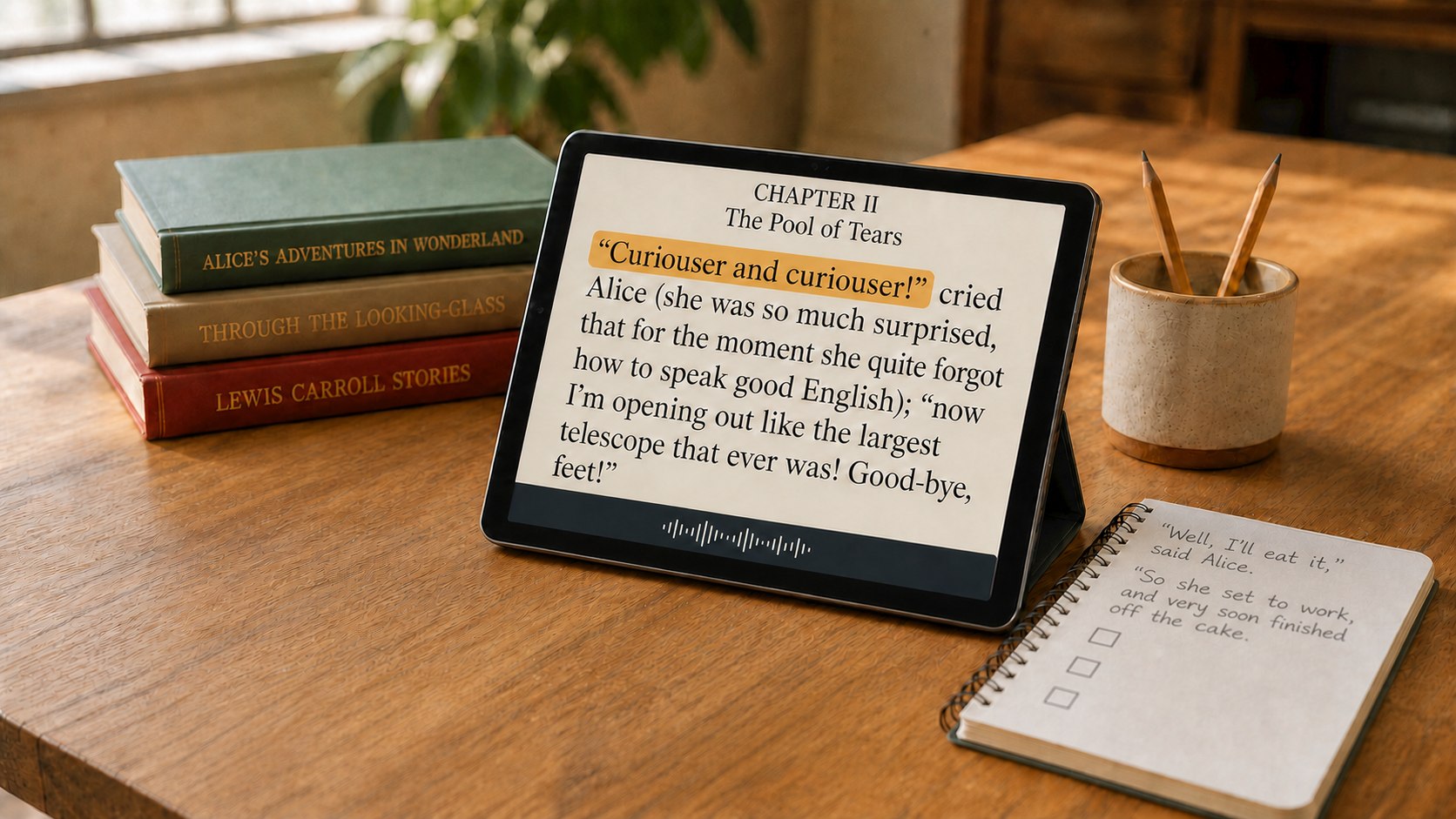
If there is one place to start, assistive technology specialists consistently point to text-to-speech — Understood (understood.org) calls it the first tool they recommend to parents, because hearing a word while seeing it strengthens decoding, holds attention, and turns a frustrating page into a manageable one. On an iPhone or iPad, Apple's Speak Screen and Speak Selection (support.apple.com) will read any webpage, email, or PDF aloud with a two-finger swipe — no app required. Chromebook users get the same effect from Select-to-Speak, which highlights each word as it reads. For actual books, Bookshare (bookshare.org) is the resource every family with a struggling reader should know: funded by the U.S. Office of Special Education Programs, it is completely free for qualifying PreK–12 students in the United States with a documented print disability such as dyslexia or low vision, and its library includes the textbooks and novels assigned in real classrooms. Families dealing with blindness or low vision should also look at the National Library Service for the Blind and Print Disabled (loc.gov) at the Library of Congress, which mails and streams braille and audiobooks at no charge. Here at i4c, our Special Education Resources (internet4classrooms.com) section includes a free Reading Assistance collection worth browsing alongside these.
Writing Help: Getting Ideas Off the Tongue and Onto the Page
For a great many kids, the ideas are excellent and the pencil is the problem. Dictation solves more homework battles than almost any other free tool. Every current iPhone and iPad supports Dictation (support.apple.com) — tap the microphone on the keyboard and speak — and Android's keyboard has the identical feature built in. On a computer or Chromebook, Voice Typing in Google Docs (support.google.com) is free, handles more than a hundred languages, and even accepts spoken commands like "new paragraph" and "bold." Pair dictation with word prediction and spelling support — on by default in most keyboards, and available in Immersive Reader — and a fifth grader who dreads a one-page report can talk it out in ten minutes and then edit what they said, which is a far better use of their energy. For middle and high schoolers, teach the two-step habit: dictate first, revise second. It separates thinking from formatting, which is exactly what executive function needs. An offline strategy that costs nothing and works at every grade: have your child explain their assignment out loud to you before they write a word, then let them dictate that same explanation.
Math Supports That Build Confidence
Math is often where accommodations are hardest to picture, but a few free tools change the picture fast. Desmos Graphing Calculator (apps.apple.com) is free on iOS and free on Android (play.google.com) — the same app on both platforms — and it is genuinely accessible, with screen reader support and an audio trace mode that lets a student hear the shape of a graph rise and fall. Younger students benefit most from lower-tech supports you can set up at the kitchen table: graph paper to keep columns lined up, a folded index card to isolate one problem at a time, and counters or LEGO bricks to make an abstract idea physical. Middle schoolers who lose points to copying errors rather than math errors should be allowed to dictate their reasoning or photograph the problem instead of recopying it. Our free Grade Level Skills Help (internet4classrooms.com) pages let you drop down to the exact skill your child is missing without embarrassment about grade labels, and the printable charts and organizers in our Printables (internet4classrooms.com) section give you the paper-based scaffolds that pair well with any device.
Communication, Hearing, and Vision
For children with speech or language needs, augmentative and alternative communication — AAC — is the bridge, and it does not have to cost thousands of dollars. The National Institute on Deafness and Other Communication Disorders (nidcd.nih.gov) offers a clear, jargon-free explanation of AAC devices, assistive listening systems, and alerting devices — a good first read before any school meeting. Cboard (cboard.io) is a free, open-source communication board with more than 3,400 symbols and built-in text-to-speech that runs right in a web browser on any device, no purchase required. Apple has built AAC directly into its devices too: Live Speech and Personal Voice (support.apple.com) let a child type to speak, and even create a synthesized voice that sounds like their own. For hearing differences, Android's free Live Transcribe (android.com) captions conversation in real time on the screen, and Apple's Live Captions does the same on iPhone and iPad. For vision, Microsoft's Seeing AI (apps.apple.com) is free on iOS and free on Android (play.google.com), and will read a worksheet, a menu, or a handwritten note aloud through the camera.
Focus, Time, and Organization
Executive function — remembering the assignment, starting it, and finding it again — is where many bright students quietly lose ground, and it is very fixable with free tools plus a little structure. Google Keep (apps.apple.com) is free on iOS and free on Android (play.google.com), syncs to any Chromebook, and does three things beautifully: voice notes your child can dictate on the bus, checklists they can tick off, and reminders that fire at a place or a time. For elementary students, keep it visual and physical — a picture checklist on the fridge and a kitchen timer set for ten minutes of work. For middle schoolers, move to a shared Keep list per subject and a nightly two-minute backpack check. For high schoolers, hand over the whole system: their own calendar, their own reminders, and a Sunday-night look at the week, with you as consultant rather than manager. Whatever the age, break work into short timed chunks with real breaks between them. That single strategy is free, takes no download, and helps focus more than any app.
Learn Alongside Your Child: Free Videos and Hands-On Practice
The fastest way to learn where a setting lives is to watch someone turn it on. The official Apple Support (youtube.com) channel publishes short, clear how-to videos for VoiceOver, Speak Screen, Dictation, and Live Captions, and the official Chromebook (youtube.com) channel does the same for Select-to-Speak, dictation, and ChromeVox. For the bigger picture, the Understood (youtube.com) channel is a warm, plainspoken library about ADHD, dyslexia, and learning differences made specifically for parents, and Google for Education (youtube.com) covers the classroom tools your child is already using. Balance the screen with hands-on practice: sit down together and set up one feature per week rather than ten in one evening, and let your child be the one who taps the switch — kids who set up their own tools actually use them. A free reading list for you: Reading Rockets: Assistive Technology (readingrockets.org) and Understood's roundup of free AT tools (understood.org).
Partnering With Your School on an IEP or 504 Plan
Everything above works at your kitchen table tonight, but the tools do their best work when home and school agree on them. If you suspect your child needs formal support, you have the right to request an evaluation in writing, and the U.S. Department of Education's official IDEA site (sites.ed.gov) explains what a free appropriate public education, an IEP, and assistive technology services actually guarantee. You do not have to walk in alone: the Center for Parent Information and Resources (parentcenterhub.org) will connect you with the federally funded Parent Training and Information Center in your state, whose staff will help you prepare for a meeting at no cost. Before you ask the school to buy anything, try it first — every state runs an Assistive Technology Act program (at3center.net) that lends devices to families free of charge, and PACER's Simon Technology Center (pacer.org) offers a lending library and free guidance from AT specialists. For the deeper "why," the nonprofit CAST (cast.org) created Universal Design for Learning, and its AEM Center (aem.cast.org) helps families secure accessible versions of textbooks and materials. Our own Special Education Resources for Parents (internet4classrooms.com) and Assistive Technology resources (internet4classrooms.com) pages are free and always open.
Tools That Help Every Learner
You will not set all of this up this week, and you shouldn't try. Pick one thing — turn on Speak Screen, or download Keep, or write the email requesting an evaluation — and let it settle in before you add the next. Notice what your child reaches for on their own, because that is the tool that will stick. And keep this in mind on the hard evenings: assistive technology is not a crutch and it is not a label. It is a pair of glasses for a different part of learning. Captions help the child with hearing loss and the child watching in a noisy kitchen. Dictation helps the student with dyslexia and the one whose hand cramps. A checklist helps a kid with ADHD and every one of the rest of us. When you remove the barrier, what's left is your child's actual thinking — which was there the whole time. Start with one tool this month, stay in friendly contact with your child's teachers, and watch what happens. Here's to a year in which every learner has what they need to thrive. Visit our Parents Zone (internet4classrooms.com) any time for more free resources.
Guest Blogger:
Bill Franklin, the CEO of Internet4Classrooms, is our guest blogger this month. He has been on the faculty at The George Washington University, has years of platform instructional experience, was a career Army Special Operations officer and also has decades of experience as a youth sports coach.
Internet4classrooms is a collaborative effort by
Susan Brooks and Bill Byles.