| Sign Up For Our Newsletter |

| Sign Up For Our Newsletter |

Using the Review Tab in Excel 2007
Tip: If you are unsure what the function of a feature is, let your cursor hover over the button (in Excel) to see a pop-up box explaining the feature.
If you want to collapse the ribbon so that none of the buttons are displayed, double-click the name of the tab.
Proofing 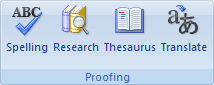
Spelling - Check the spelling of text. The keyboard shortcut to check spelling is F7 .
Research - Open the Research Task Pane to search through reference materials such as dictionaries, encyclopedias, and translation services. The keyboard shortcut for Research is Alt + Click .
Thesaurus - Suggests other words with a similar meaning to the word you have selected.
Translate - Translate the selected text into a different language.
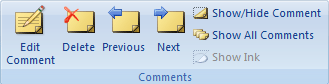
Edit Comment - Edit the selected comment. The keyboard shortcut to edit a selected comment is Shift + F2 . Note: This button will not be displayed unless a cell containing a comment has been selected.
New Comment - Add a comment about the selected cell. The keyboard shortcut to add a comment is Shift + F2 . Note: This button is the default view in the Comments section rather than the Edit Comment button displayed at the top of this explanation.
Delete (comment) - Delete the selected comment.
Previous (comment) - Select the previous comment in the worksheet.
Next (comment) - Navigate to the next comment in the document.
Show/Hide Comment - Show or hide the comment attached to the selected sheet.
Show All Comments - Display all comments in the sheet.
Show Ink - Show or hide any ink annotations on the sheet.
Changes 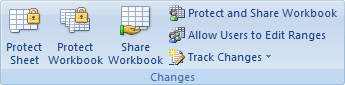
Protect Sheet - Prevent unwanted changes to the data in a sheet by specifying what information can be changed. For example, you can prevent people from editing locked cells or changing the formatting of the document. You can specify a password that can be entered to unprotect the sheet and allow these changes.
Protect Workbook - Prevent unwanted changes to the structure of the workbook, such as moving, deleting, or adding sheets. You can specify a password that can be entered to unprotect the workbook and allow these changes.
Share Workbook - Allow multiple people to work in a workbook at the same time. The workbook should be saved to a network location where multiple people can open it. Workbooks containing tables cannot be shared.
Protect and Share Workbook - Share the workbook and protect it with a password at the same time. The password will prevent others from turning off change tracking.
Allow Users to Edit Ranges - Allows specific people to edit ranges of cells in a protected workbook or sheet. Before using this feature, first set security on the sheet by using the Protect Sheet command. To use this feature, your computer must be joined to a Microsoft Windows domain.
Track Changes - Track all changes made to the document, including insertions, deletions, and formatting changes.
In the Table below, select which section of the Review tab you would use to perform the stated action. [This quiz has not been completely written yet.]
2. Question 2
x
3. Question 3
x
4. Question 4
x
5. Question 5
x
6. Question 6
x
7. Question 7
x
8. Question 8
x
9. Question 9
x
10. Question 10
x
Search Internet4Classrooms
 Custom Search
Internet4classrooms is a collaborative effort by Susan Brooks and Bill Byles.


advertisement
advertisement

- Site Map |
- About Us |
- Teacher Training |
- Make Internet4Classrooms.com your home page. |
- Copyright © 2000-2024 Internet4Classrooms, LLC All rights reserved.
Use of this Web site constitutes acceptance of our Terms of Service and Privacy Policy.
1694708746779644 US 1 desktop not tablet not iPad device-width