| Sign Up For Our Newsletter |

| Sign Up For Our Newsletter |
Creating Hyperlinks in Microsoft Word
OK, Everyone knows about hyperlinks on a web page, but in a Word document? Yes. In fact hyperlinks can be created in all Microsoft Office applications; PowerPoint, Excel and Word.
Definition
What is a hyperlink? A hyperlink is a selectable object that includes the path information to another object. The object can be a target on the same document, a file on the same computer, or a uniform resource locator giving the location of a web page halfway around the world. The process of creating a hyperlink is exactly the same in all cases. Some point on the document or webpage is turned into an active spot which includes the path information and by clicking on it will take you to a specific destination.
Activity
For this activity you will download two documents and either save them to your desktop, a floppy or USB storage. Do not just open the documents, save them first. Saving is required in order to establish a hyper link. An unsaved document exists as a temporary file. You want to be able to embed the path information into a hyperlink.Download the two documents, save them to your desktop, floppy, or USB and open Desiderata. You are ready for step 1.
- Document 1 - The poem Desiderata. You will embed three types of hyperlinks in this document; a link to a bookmark which you place in the document, a link to open another document on your desktop (Document 2), and a link to the place on the Internet where this copy of the poem was found.
- Document 2 - A self congratulatory document celebrating the fact that you opened a document by using a hyperlink that you created.
Create a Hyperlink to a Bookmark
Step 1
- Open Desiderata. and find the sentence " But do not distress yourself with dark imaginings. "
Step 2
- Place your cursor to the left of the beginning of that line. Actually, you can place your cursor anywhere in that statement, the hyperlink will work just as well.
Step 3
- Move your cursor to the Insert menu, click once and slide down to Bookmark . Click one time.
Step 4
- Using the Bookmark dialog box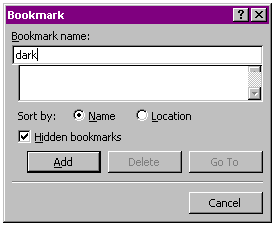
- Enter a name for the bookmark. The bookmark will go wherever your cursor is in the document. If you have moved the cursor since step 2, click Cancel and go back to step 2. I used dark at the name for my bookmark.
- My bookmark will be hidden, that is the default choice. Deselect that check mark is you want the bookmark to show.
- Click on Add and the bookmark it put in place.
- Save the document. If you do not, Word will not know that there is a bookmark in the document.
Step 5
- Making a hyperlink to the bookmark
- At the top of the document, put your cursor to the right of the parenthesis mark below the title and press the Enter/Return key one time
- Type the phrase " good advice ."
- Highlight the phrase you just typed.
- Move your cursor to the Insert menu, click one time and scroll down to Hyperlink, click one time.
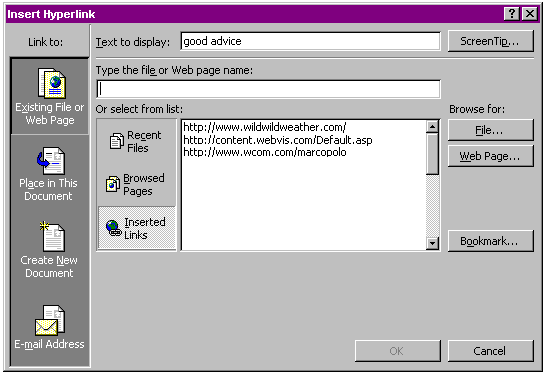
- Select Place in this Document. A list of all of the bookmarks in the current document will be displayed. Do not be dismayed, there is only one bookmark, the one you just made.
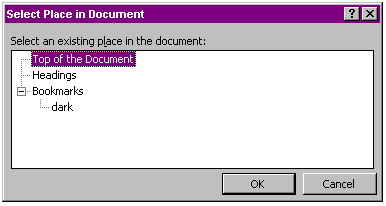
The dialog box above shows the bookmarks that had been added in the document. Select the bookmark you just made in the steps above then click OK and the words good advice are now a hyperlink. Notice in the image below that when the cursor is positioned over the hyperlink it changes to a hand and the name of the bookmark appears.
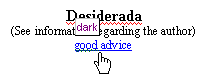
Task : (1) Create a bookmark on the Desiderata. document at the bold paragraph at the bottom of the document that begins " From the Alt.Usage.English FAQ... " (2) Save the document (3) Go to the top of the Desiderata. document and make the phrase " See information regarding the author " a hyperlink to the bold paragraph at the bottom.
Create a Hyperlink to a Document on your Computer
Step 1
- Go to the bottom of the Desiderata. document and highlight the phrase, I did a good job!
Step 2
- Go to the Insert menu and select Hyperlink .
Step 3
- This time when the Insert Hyperlink dialog box opens select Existing File or Web Page, then select File on the right side of the dialog box. If you need to review what the window looks like, select this link . When you are finished click on the Back button to come back here.
Step 4
- A Link to File dialog box opens which will allow you to browse to find the file. From wherever you saved the file, select the hooray4me file then select the OK button, then select OK in the Insert Hyperlink dialog box. If you saved the documents to your floppy you must change the Look in: location at the top of this dialog box.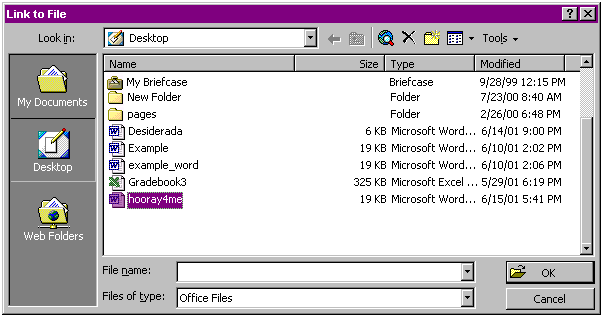
Step 5
- Try the link that you just made. After you see the message close hooray4me to go back to Desiderata. You have one more hyperlink to create.
Create a Hyperlink to a Website
Step 1
- Go to the bottom of Desiderata. and highlight the URL. Be careful to get only the URL and not any space before or after it. A Uniform Resource Locator (URL) begins with http and ends with html. After you are sure you have only the URL highlighted, go to the Edit menu and select Copy .
Step 2
- Leave the URL highlighted. We are going to make it into a link.
Step 3
- With the URL highlighted move your cursor to the Insert menu and select Hyperlink .
Step 4
- When the Insert Hyperlink window opens you will find the URL you copied has been placed into the Type the file or Web page name: box. Look carefully. Make sure that the first character is an h and not a colon or a space.
Step 5
- Select OK and try your hyperlink. Describe the background of the web page where the poem Desiderata is located.

Internet4classrooms is a collaborative effort by
Susan Brooks and Bill Byles.


advertisement
advertisement
Use of this Web site constitutes acceptance of our Terms of Service and Privacy Policy.