| Sign Up For Our Newsletter |

| Sign Up For Our Newsletter |

Using an Excel worksheet
Entering and Editing Data
Using Excel X for Mac
Step 1 - Cell data - Things that can be entered into a cell:
- numbers
- words
- equations, formulas or functions
- fill color
- images (although they are actually on top of a cell, not in it)
Step 2 - Entering data - Move to the cell where you want to enter data and enter words or numbers. If data is already in the cell it will be replaced without you having to cut or delete the previous data. A review is available on how to move from cell to cell .
Step 3 - Format data - Once information has been entered into a cell, you might want to change something about the way the information is displayed. To do that, make sure the cell you want to format is selected and go to the Format menu. Select Cells... The number I entered repeats infinitely, but I only need 2 decimal places.
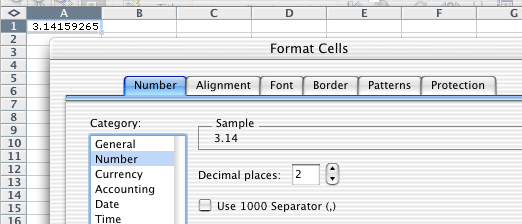
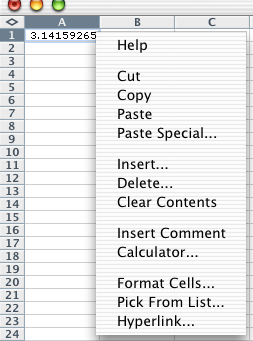
You can bring up the Format Cells dialog box by right-clicking on the cell you want to format.
(Macintosh users, remember that is Ctrl + click). From the following pop-up box select Format Cells...
Step 4 - Using formatting buttons - There are several toolbar buttons which allow one-click formatting. To illustrate I entered the same number in four cells, with the formatting I plan to use for each cell.
With cell A1 selected I clicked once on the Currency button
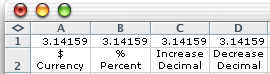

In cell B1 I selected the Percent button
I selected the Increase Decimal button for cell C1
The Decrease Decimal button was used to format cell D1
These four actions produced the following result:
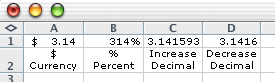
As you can see, the Percent button simply multiples by 100 and attaches the % sign. Care must be exercised in using this button properly.
Step 5 - Other formatting options - The Format toolbar includes several formatting options which can be applied to information entered into a cell.

If you need a review of these options, go back to the Formatting toolbar module .
Step 6 - Editing entered data - If incorrect information has been entered into a cell, one easy way to edit that is to click on the cell and enter the correct information.
You do not need to highlight or delete. Typing replaces whatever is in the cell.If you do not want to replace the data, but simply need to correct some part of it, move your cursor into the Formula bar
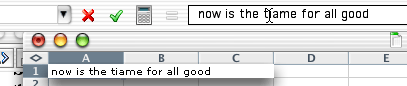
When your cursor turns into an I-Beam, click and edit within the formula bar.
Step 7 - Review cursor styles - There are four common cursor styles used in Excel. Become familiar with each style.
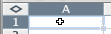
Click and drag to highlight multiple cells with this cursor, or click in a cell to select the single cell
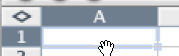
Click and drag the contents of the selected cell to any other cell.
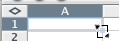
Click and drag with this cursor to fill cell contents into cells below or to the right.
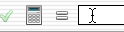
Click to place the cursor into the Formula bar so that you can edit an equation or function.

Internet4classrooms is a collaborative effort by
Susan Brooks and Bill Byles.


advertisement
advertisement
Use of this Web site constitutes acceptance of our Terms of Service and Privacy Policy.