| Sign Up For Our Newsletter |

| Sign Up For Our Newsletter |

Using Insert, Format and Font Menu items in Microsoft Excel
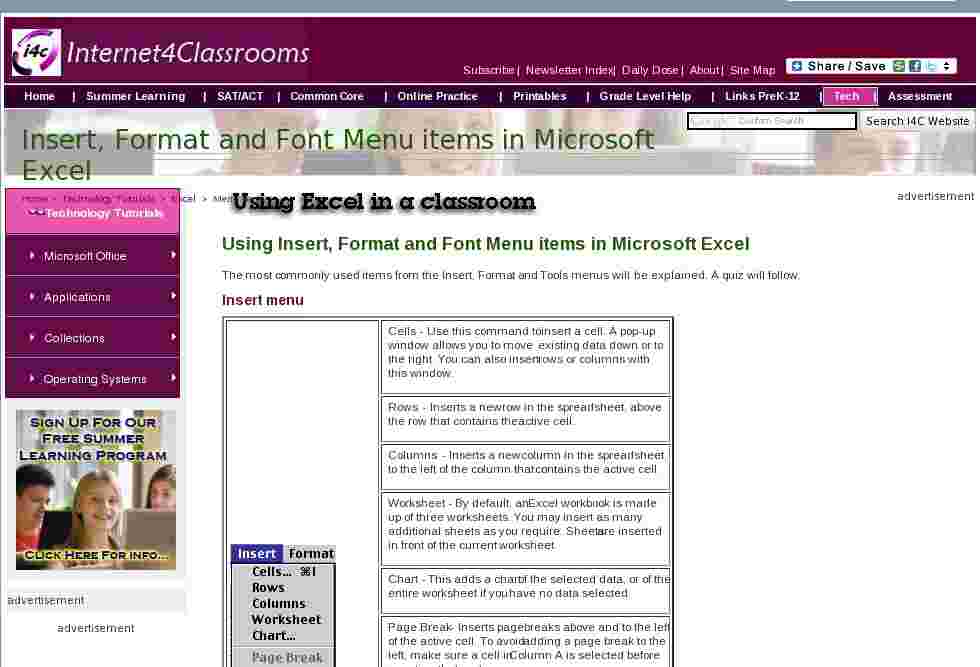
The most commonly used items from the Insert, Format and Tools menus will be explained. A quiz will follow.Insert menu
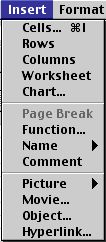
Cells - Use this command to insert a cell. A pop-up window allows you to move existing data down or to the right. You can also insert rows or columns with this window.
Rows - Inserts a new row in the spreadsheet, above the row that contains the active cell.
Columns - Inserts a new column in the spreadsheet, to the left of the column that contains the active cell.
Worksheet - By default, an Excel workbook is made up of three worksheets. You may insert as many additional sheets as you require. Sheets are inserted in front of the current worksheet.
Chart - This adds a chart of the selected data, or of the entire worksheet if you have no data selected.
Page Break - Inserts page breaks above and to the left of the active cell. To avoid adding a page break to the left, make sure a cell in Column A is selected before inserting the break.
Function - Opens the Paste Function window allowing the selection of a specific equation to go in the active cell.
Comment- Have something to say about the contents of a cell? Add a small note with the appearance of a Post-It note.
Picture - Insert pictures from clip art or a file. You can also insert auto shapes, word art, or a chart.
Object - Insert an object such as clip art, word art, an equation or much more.
Hyperlink - An interesting use of hyperlinks is to place a link to any document stored on your computer. You can later open that document by clicking on the link. If you want to see an example of an Excel worksheet using hyperlinks to Internet sites , download a copy and open it with Excel.
Format menu
Cells - Format the way a number is displayed, alignment of data in the cell(s), font (size, color, style, etc.), borders and colors for the selected cells, and you may also lock the contents of a cell here.
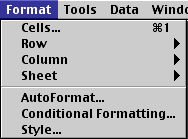
Row - Specify a row height, choose auto-fit, and hide or unhide the selected row.
Column - Specify a column width, choose auto-fit, hide or unhide the selected column, or choose the standard width for a column.
Sheet - Here you can rename the sheet if sheet 1 is not descriptive enough (and it's not), you can hide or unhide a sheet, or you can tile an image in the background of the entire sheet.
Auto Format- There are sixteen pre-designed formats to change the look of your spreadsheet. You may apply the format to the entire sheet or only to selected cells.
Style - Opens a Style window which will lead to the Format Cells window if you wish to Modify the format.
Tools menu
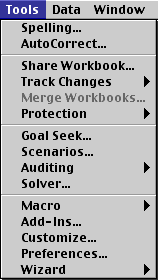
Spelling - Check spelling in your document
AutoCorrect - Define, or turn off automatic corrections. If you tend to make a particular keystroke error often, and it is not in the dictionary, you can add it here.
Share Workbook - Choose this option if you want several users to work on the data in the same workbook simultaneously. Make it available on your network and anyone with access can make changes.
Protection - You can password protect a single sheet of a workbook, or the entire workbook. One obvious application would be to protect a worksheet which you are using as your grade book.
Customize - Select/Deselect toolbars to be displayed with your workbook, or add buttons to existing toolbars.
Preferences. - If you do not like something Excel does automatically, or if you know it should be doing something automatically and it is not, this is where you turn those features on or off.
This quiz is available on a page without the explanations aboveIn the Table below, select which menu you would use to perform the stated action.
2. The number 234 was entered in a cell, but when you clicked into another cell the data you entered changed to 8/22/04. You want to change it back. Which menu do you select?
* 3. Sheet one of a workbook is your grade book. You want to place a password on that sheet so students can not change the data. Which menu do you select?
* 4. You want your basic spreadsheet to look more like one designed by an accountant. Which menu do you select?
* 5. A list of numbers just does not communicate as well as you want to. A chart should be put into your spreadsheet to clearly show the patterns you see in the data. Which menu do you select?
* 6. Your spreadsheet is to be used as a catalog of documents on your computer, and you want to put links to those documents in your worksheet. Which menu do you select?
* 7. Where is that button? You have grown accustomed to a toolbar button in another Office application and want to add it to an Excel toolbar. Which menu do you select?
* 8. Before you show a worksheet to someone you want to hide one column of data. Which menu do you select?
* 9. You have worked with Excel on another computer and know that something should happen automatically, and it's not doing it. Which menu do you select to make the change?
* 10. Almost finished with the sheet, the only thing missing is a clip art image. Which menu do you select to place an image on the worksheet?
*
Go back to Using Microsoft Excel to Analyze Classroom Data

Internet4classrooms is a collaborative effort by
Susan Brooks and Bill Byles.


advertisement
advertisement
Use of this Web site constitutes acceptance of our Terms of Service and Privacy Policy.