| Sign Up For Our Newsletter |

| Sign Up For Our Newsletter |
[External Link] Nationwide Onsite Software Training - Excel shortcuts for three versions of the software; 2010, 2007, and 2003 [Thanks Donna, for telling us about these shortcuts.]
Keyboard Shortcuts to use
with a Windows/PC Computer
You can avoid reaching for the mouse if you are familiar with keyboard shortcuts.
If you forget one of these, use the mouse and go to the menu bar.
In each pull down menu you will see keyboard commands given in the right side of the window.Commonly used keyboard combinations
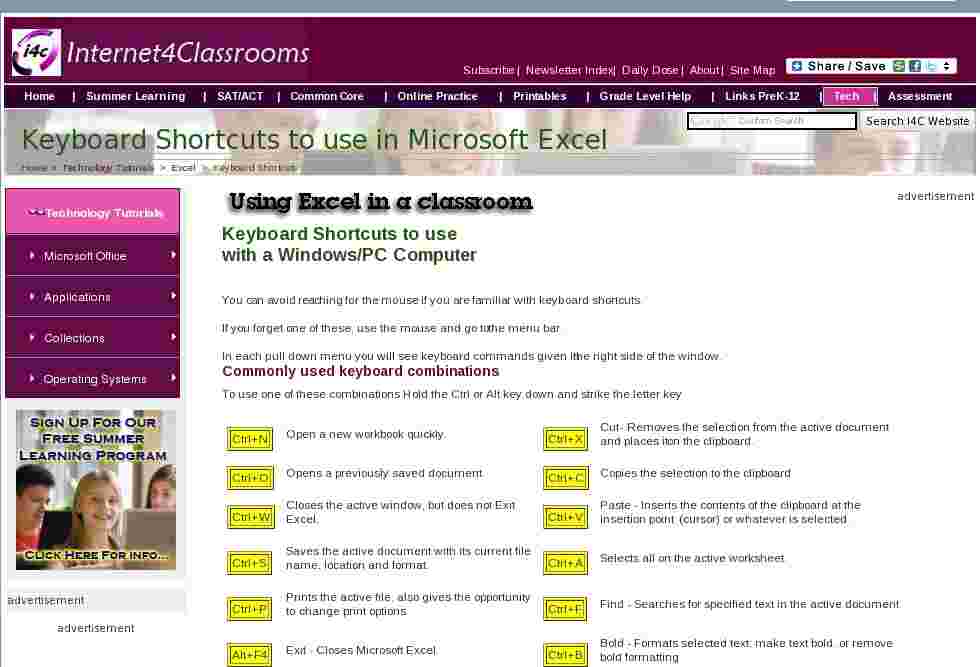
To use one of these combinations Hold the Ctrl or Alt key down and strike the letter key
Ctrl+N Open a new workbook quickly.
Ctrl+X Cut- Removes the selection from the active document and places it on the clipboard.
Ctrl+O Opens a previously saved document.
Ctrl+C Copies the selection to the clipboard
Ctrl+W Closes the active window, but does not Exit Excel.
Ctrl+V Paste - Inserts the contents of the clipboard at the insertion point (cursor) or whatever is selected.
Ctrl+S Saves the active document with its current file name, location and format.
Ctrl+A Selects all on the active worksheet.
Ctrl+P Prints the active file, also gives the opportunity to change print options
Ctrl+F Find - Searches for specified text in the active document
Alt+F4 Exit - Closes Microsoft Excel.
Ctrl+B Bold - Formats selected text; make text bold, or remove bold formatting
Ctrl+Z Undo the last action. This selection can be repeated several times.
Ctrl+I Italic - Formats selected text; make text italic or remove italic
Ctrl+Y Redo - After an action has been undone, it can be reinstated in the document.
Ctrl+U Underline - Formats selected text; make text underlined or remove underline
Less commonly used keyboard combinations
To use any of these combinations hold down the first key(s) and tap the last key one time.
Release the held keys when the action is completed

Select the next sheet in the workbook 
Select the previous sheet in the workbook 
Move to the previous workbook or window 
Complete a cell entry and move to the right in the selection 
Complete a cell entry and move to the left in the selection 
Move to the previous workbook or window 
Move to the next workbook or window 
Start a new line in the same cell 
Complete a cell entry and move down in the selection 
Move to the next workbook or window 
Start a formula 
Cancel a cell entry 
In print preview, move to the first page when zoomed out 
In print preview, move to the last page when zoomed out 
In print preview, move to the last page when zoomed out 
In print preview, move to the first page when zoomed out 
Complete a cell entry and move up in the selection Move between unlocked cells on a protected worksheet 
Insert a new worksheet 
Insert a new worksheet 
Prints the active file, also gives the opportunity to change print options 
Create a chart that uses the current range 
Select the entire row 
Select the entire column 
Create a chart that uses the current range 
Enter the time 
Enter the date 
Insert a hyperlink 
Fill down 
Fill to the right In a cell with a hyperlink, this activates the hyperlink 
Apply the outline border 
Remove outline borders 
Apply the percentage format 
Apply the currency format 
Select the current region around the active cell 
Hide rows 
Hide columns 
Insert the Auto Sum formula 
un hide rows 
un hide columns 
Display the Format Cells dialog box 
Complete a cell entry and move up in the selection 
Create names from row and column labels 
Show, or hide, the Standard toolbar 
Displays all formulas in a worksheet, repeat to hide If text is already selected and you want to extend the selection area 
Extend selection one character to the left in the formula bar, or one cell to the left in the worksheet

Extend selection one character to the right in the formula bar, or one cell to the right in the worksheet

Extend selection to the last non blank cell to the right or above a selected cell.

Extend selection to the to the last non blank cell to the left or below a selected cell If you want to move the cursor 
One character to the right in the formula bar or one cell to the right in the worksheet

One character to the left in the formula bar or one cell to the left in the worksheet

One word to the right in the formula bar

One word to the left in the formula bar

To the end of a document or to the right edge of the formula bar

To the beginning of a document or to the left edge of the formula bar
This list is by no means complete. To find other keyboard combinations check the Excel help index.
Assignment Leave your browser window open. Open Microsoft Excel, if it is not already open.
From this point forward, do not use your mouse1. Open a new workbook .
2. Insert a new worksheet into the workbook
3. Move to sheet 2
4. Move your cursor to cell D4
5. Type your name and press the Enter key
6. Move back into cell D4 and Copy your name
7. Move from sheet 2 to sheet 4
8. Move your cursor into cell E5
9. Paste your name
10. Hide the column your name is in
11. ( deserved , but not required ) Pat yourself on the back!
Each of the steps in the list above should have been accomplished without the use of your mouse. If you reached for the rodent, review the two tables above, go back to step 1 and try again. Good luck.A Windows Keyboard is available showing general PC/Windows keyboard shortcuts

Internet4classrooms is a collaborative effort by
Susan Brooks and Bill Byles.


advertisement
advertisement
Use of this Web site constitutes acceptance of our Terms of Service and Privacy Policy.