| Sign Up For Our Newsletter |

| Sign Up For Our Newsletter |

Slide show options
Your slides have been created.
Transitions and animations have been selected.
It is time to work on your entire show.
Go to the slide sorter view so you can get a visual overview.
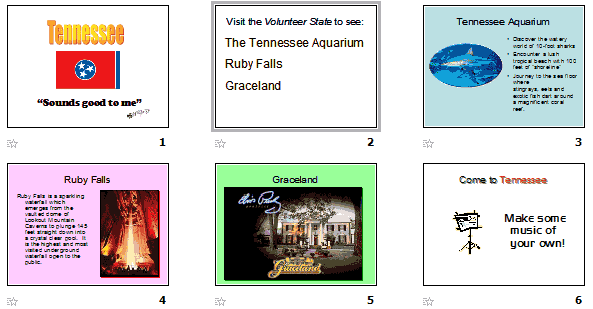
If you decide that a slide belongs in another place you may click and drag the entire slide to the new spot. For example; I could click on slide 3 and drag it to the left. A vertical line will appear between slides 1 and 2. If I let go of the mouse button, my original slide 3 will now be slide 2.
Viewing the Slide Show
You can start a show by clicking on the Slide Show button at the bottom of the window [
].
You may also go to either the View menu or the Slide Show menu at the top of the screen and select Slide Show .
You may also begin a show by pressing the F5 button.
Either of these options will allow you to see your show. If you are working on a slide and want to test your show starting from any slide other than slide 1, use the Slide Show button at the bottom of the window. The other methods all begin your show with slide 1.There is an option which gives you more control. Go to the Slide Show menu, and select Set Up Show or Rehearse Timings .
Set Up Show
This choice allows control over several parameters:
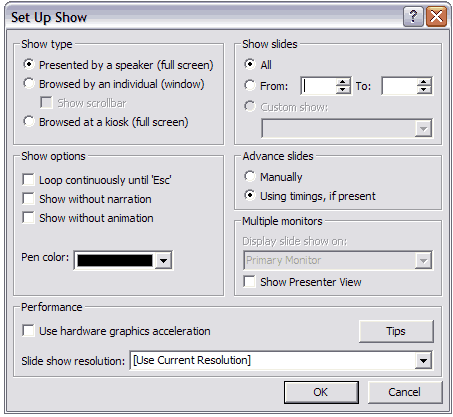
The principal use of this window will be to cause the show to loop continuously until you hit the esc key. Even though timings are specified, you could choose to advance slides manually. Pen color will allow you to write on the slide during the show, and the mark will not permanently change the slide. More on that later.
Rehearse Timings
[Caution! This option should not be selected if you, or your students, will be presenting to the class. Only use this for something like a Parent's Night display.] If you select this option, your show immediately starts. A timer begins to run in the bottom right corner. When you are ready for the next thing to happen, click once with your mouse. Nothing will happen until you click. Wait until the exact amount of time has elapsed before you click. PowerPoint records all of those timings and will ask you at the end of the rehearsal if you want to save those times. If you say yes then any times you may have entered will be changed when you go back to the Slide Sorter view
Ready? On with the show!Go on to Ideas shared by other PowerPoint users
Go Back to Using PowerPoint for presentations

Internet4classrooms is a collaborative effort by
Susan Brooks and Bill Byles.


advertisement
advertisement
Use of this Web site constitutes acceptance of our Terms of Service and Privacy Policy.