| Sign Up For Our Newsletter |

| Sign Up For Our Newsletter |
advertisement

MS Word Menus
File, Edit, and View menu items
Windows/PC version
The most commonly used items from the File, Edit and View menus will be explained. A quiz will follow.
File menu
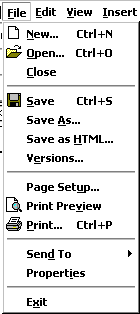
New - Opens a new document. If you use the keyboard combination indicated on the right a blank document opens immediately. Selecting the New menu item with your cursor gives the opportunity to open a large number of types of documents.
Open - Opens a previously saved document.
Close - Closes the active document but does not quit the application.
Save - Saves the active document with its current file name, location and format.
Save As - Saves by opening a window which gives the opportunity to change the file name, location or format.
Page Setup - Sets margins, paper size, orientation and other layout options.
Print Preview - Shows how the file will look when you print it.
Print - Prints the active file, also gives the opportunity to change print options
Exit - Closes Microsoft Word.
Edit menu
Undo ... - The actual entry of this item will depend on what you did last. In my example I had cut text, so that was displayed. This selection can be repeated several times.
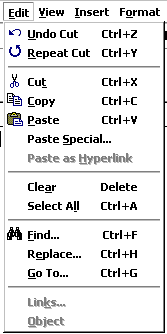
Repeat ...- After an action has been undone, it can be reinstated in the document.
Cut - Removes the selection from the active document and places it on the clipboard.
Copy - Copies the selection to the clipboard
Paste - Inserts the contents of the clipboard at the insertion point (cursor) or whatever is selected.
Clear - Deletes the selected object or text, but does not place it on the clipboard.
Select All - Selects all text and graphics in the active window.
Find - Searches for specified text in the active document
Replace - Searches for and replaces specified text and formatting.
View menu
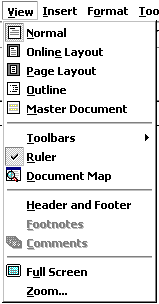
Normal - The default document view for most word processing tasks.
Page Layout - An editing view that displays your document as it will look when printed. This view takes more system memory and scrolling may be slow.
Toolbars - Displays or hides toolbars. The right pointing arrow indicates a list of toolbars. To add one slide down to the name of the toolbar and click to select.
Ruler - Displays or hides horizontal and vertical rulers at the top and left side of the document.
Header and Footer - Adds or changes the text that is displayed at the top or bottom of every page of the document
Full Screen - Hides most screen elements so you can see more of your document
Zoom - Controls how large, or small, the current document appears on the screen.
This quiz is available on a page without the tables above
In the Table below, select which menu you would use to perform the stated action.
2. A document was saved to your disk and you want to open it. Which menu do you select?
x
3. The Formatting toolbar has been removed and you want to add it back to your window. Which menu do you select?
x
4. You have selected a line of text that you want to remove from the document. Which menu do you select?
x
5. You are preparing a certificate and want to turn the page to landscape orientation. Which menu do you select?
x
6. Rulers are missing from the top and side of the document and you want to display them on the screen. Which menu do you select?
x
7. Carriage returns have placed too many paragraph marks in your document and you want to remove all of them. Which menu do you select?
x
8. You have been working on a document and now want to save it with a different name. Which menu do you select?
x
9. Students have produced a report and they want to place "Group 4, Ms. Smith's Class" at the top of each page. Which menu do you select?
x
10. You have finished for the day and want to close Microsoft Word. Which menu do you select?
x
Go to Using Word menu items, part 2
Go back to Using Microsoft Word to Produce Classroom Documents

Internet4classrooms is a collaborative effort by
Susan Brooks and Bill Byles.


advertisement
advertisement
Use of this Web site constitutes acceptance of our Terms of Service and Privacy Policy.

